Tabvanta: Finally, Tabbed Open & Save Dialogs for Windows 11
If you've used a web browser in the last fifteen years, you've used tabs. You open a dozen pages, flip between them instantly, pin the ones you visit constantly, and never think twice about it. Now think about the last time you had to dig through a file picker in Windows — clicking through the same nested folders over and over, every single time you open or save a file. That workflow hasn't meaningfully changed since Windows 95, and it's exactly the problem Tabvanta was built to fix.
What Is Tabvanta?
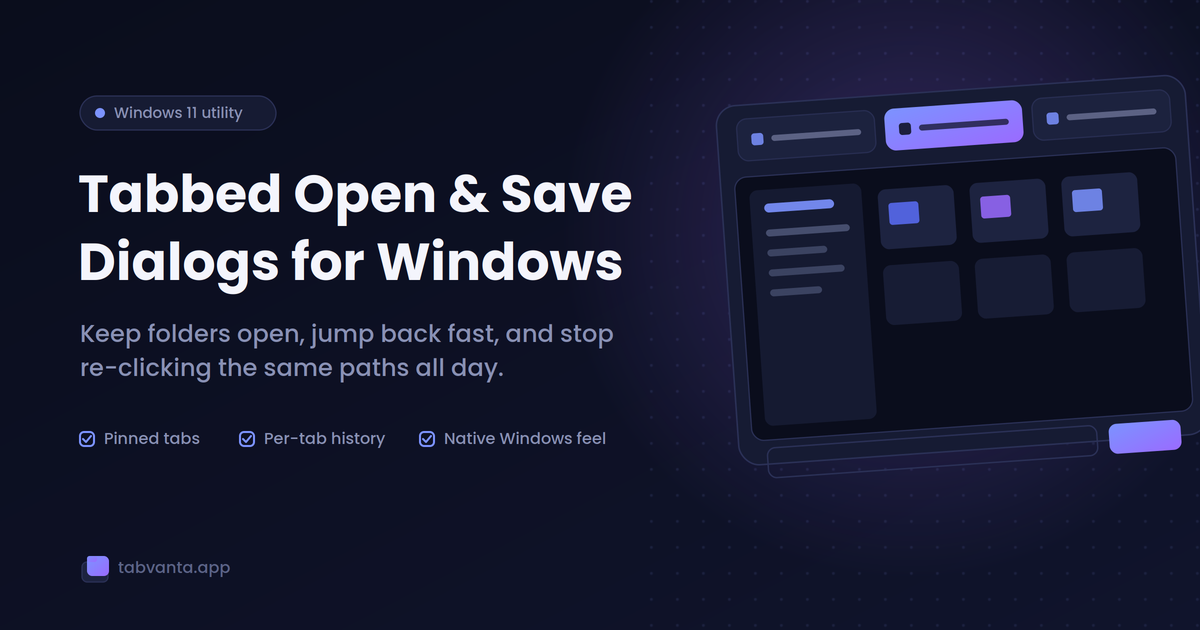
Tabvanta is a lightweight Windows 11 utility that adds a tabbed interface to the standard Open and Save dialog boxes — the same windows that pop up in nearly every application on your PC, whether you're attaching a file in an email client, saving a document in a word processor, or loading an image into a design tool. Instead of a single-pane dialog that forces you to renavigate your folder tree from scratch every time, Tabvanta lets you keep multiple locations open as tabs, right inside that same familiar dialog.
It's not a file manager replacement, and it's not trying to reinvent how Windows works. It's designed to slot directly into the dialogs you already use dozens of times a day, and just make them faster.
The Problem It Solves
Anyone who works across multiple projects, client folders, or asset libraries knows the drill: you open a save dialog, click through This PC, then Documents, then Projects, then the specific client folder, then the subfolder for this week's deliverables — and tomorrow you do it again from scratch, because the dialog forgot everything the moment you closed it.
Multiply that by every application you use and every file you touch in a day, and it adds up to a surprising amount of wasted clicking and searching. Tabvanta's entire premise is that this repetition is unnecessary. If your browser can remember which sites matter to you, your file dialogs should be able to remember which folders matter to you too.
Core Features
Pinned Tabs That Persist
The centerpiece of Tabvanta is the ability to pin folders as tabs that stay put. Keep your active project folder, your downloads, your screenshots directory, and your current client's asset folder all open as tabs, and they're waiting for you the next time an Open or Save dialog appears — in any application. No more re-clicking through the same directory tree first thing every morning.
Temporary tabs work differently and are meant to disappear once you're done with them, so your tab bar doesn't get cluttered with one-off folders you only needed for a single file operation. Pin what matters, let the rest fall away.
Recent Folder History — Per Tab and Global
Tabvanta tracks folder history two ways. There's a global history you can dig through to find a folder you visited recently but forgot to pin, and there's also history scoped to each individual tab, going back through the last several folders visited within that tab specifically. It's a small detail, but it means you're not stuck scrolling through one giant, undifferentiated list — the history you need is organized by the context you were already working in.
It Still Feels Like Windows
A tool like this only works if it doesn't fight the operating system it's built for. Tabvanta keeps the navigation elements you already know — Quick Access, This PC, your mapped drives, network locations, native Windows Shell right-click menus, file thumbnails, and the same view options you're used to. There's no new mental model to learn. It's the Windows file dialog you already know, with tabs bolted on in a way that feels native rather than bolted-on.
Built for Real Workflows, Not Demos
Beyond the headline tab feature, Tabvanta supports the details that make a difference in daily use:
- Open, Save As, and folder-selection modes — it works across the different dialog types Windows applications actually use, not just a single generic case.
- Light and dark themes — including a "Follow Windows" option in Pro that matches your system theme automatically.
- Multiple file views and thumbnails — so you can visually scan a folder of images or documents instead of reading a flat list of filenames.
- Last 10 folders tracked automatically — even without manually pinning anything, Tabvanta is quietly keeping a short memory of where you've been.
Free vs. Pro
Tabvanta ships with a genuinely usable free tier rather than a crippled trial. The Free version includes the core tabbed dialog experience, pinned tabs, folder history, Quick Access and drive navigation, and full Windows Shell context menu integration — the essentials that solve the main problem, at no cost, for personal use.
Tabvanta Pro is a one-time purchase (no subscription) that adds a commercial-use license, the dark theme and "Follow Windows" auto-theming, and priority access to advanced workflows as they're released. One detail worth calling out: licensing is handled sanely. Free users get a permanent license key, and if you decide to upgrade later, that same key simply becomes a Pro key — no reinstalling, no juggling multiple license strings, no losing your settings in the process.
Who Actually Benefits From This
Tabvanta is aimed squarely at people who live in file dialogs more than the average user does:
- Developers and IT admins who are constantly navigating between project directories, config folders, and build outputs.
- Designers and content creators who move between asset libraries, export folders, and client-specific directories throughout the day.
- Anyone managing multiple ongoing projects where "the folder I need" changes by the hour but keeps rotating through the same handful of locations.
If you only ever save files to your Documents folder and never think about it again, Tabvanta's benefit will be modest. But if your workday involves repeatedly hunting through the same three or four folder trees across a dozen different applications, the time savings compound fast — and once you're used to having tabs in a file dialog, going back to a single-pane picker feels genuinely clunky.
Getting Started
Tabvanta is built specifically for Windows 11 and is available as a free download that includes a permanent license key from the first install — there's no trial countdown or feature lockout to worry about. If it turns out to be useful in your daily workflow, upgrading to Pro is a single one-time purchase that unlocks the rest without requiring a fresh install or a new key.
You can grab it and see the full feature breakdown at tabvanta.app.